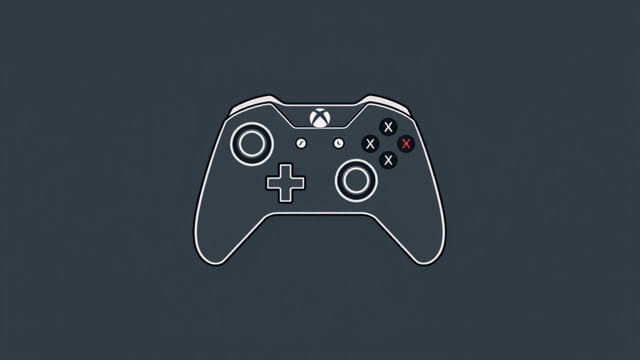
PlayingX-Plane 11with an Xbox controller can be a great way to enjoy the flight simulator without investing in expensive flight sticks or yokes. While the simulator is designed with realism in mind and often favors complex hardware, the Xbox controller offers enough functionality to let casual players or beginners experience full flights with surprising control. Setting it up properly, however, requires a bit of customization to make sure your inputs are smooth, accurate, and comfortable. Whether you’re flying small Cessnas or commercial jets, getting your Xbox controller working in X-Plane 11 is entirely doable with the right steps.
Getting Started: Connect the Xbox Controller
Wired or Wireless Connection
Before launching the simulator, ensure your Xbox controller is properly connected to your PC. If you’re using a wired controller, plug it into a USB port. For wireless controllers, use a Bluetooth connection or the official Xbox wireless adapter for stable input.
Verify Controller Recognition
After connecting, open Windows’ ‘Devices and Printers’ or ‘Game Controllers’ settings to confirm that the Xbox controller is recognized. If everything is working properly, proceed to launch X-Plane 11 and head to the controller settings menu to begin configuration.
Accessing the Joystick Configuration Menu
Once inside X-Plane 11, follow these steps to begin setting up your Xbox controller:
- Click on theSettingsoption from the main menu.
- Select theJoysticktab from the left-hand side.
- Your Xbox controller should appear as a device in the joystick configuration screen.
If your controller does not show up, exit the game, reconnect your device, and restart X-Plane 11. Ensure all drivers are properly installed.
Basic Axis Configuration
Assigning Pitch and Roll
The two thumbsticks on the Xbox controller will serve as your primary flight controls. Typically, you’ll want the left thumbstick to control pitch (nose up/down) and roll (bank left/right):
- Move the left stick vertically – assign it toPitch.
- Move the left stick horizontally – assign it toRoll.
Click the appropriate axis in the menu, then move the stick and choose the correct control from the dropdown list.
Assigning Yaw (Rudder)
The rudder is best assigned to the right thumbstick’s horizontal axis:
- Move the right stick left and right – assign this axis toYaw.
This allows for smooth rudder input during taxiing and coordinated turns in-flight.
Throttle Control
Use the triggers for throttle adjustments:
- Assign the right trigger (RT) asIncrease Throttle.
- Assign the left trigger (LT) asDecrease Throttle.
In X-Plane 11, some users may prefer to use one of the thumbsticks for throttle, but triggers often feel more intuitive and natural for incremental changes.
Button Mapping for Essential Functions
Recommended Assignments
The Xbox controller has several buttons you can assign to critical flight functions. Here are some suggested bindings:
- A: Brakes toggle
- B: Landing gear up/down
- X: Flaps down
- Y: Flaps up
- LB: View toggle (internal/external)
- RB: Reset view or quick look forward
- Start: Pause
- Back: Activate autopilot or open map
You can assign these by clicking on each button in the joystick menu and selecting the corresponding command from the dropdown list. Prioritize the functions you use most during flights.
Advanced Binding Suggestions
If you want more control during flight, consider assigning buttons to:
- Autopilot altitude hold
- Heading hold toggle
- Navigation mode
- Parking brake toggle
- Engine start or shutdown
These are especially useful when flying airliners or more complex aircraft. Though you’re limited by the number of buttons, smart mapping can give you access to almost every critical function.
Sensitivity and Dead Zone Settings
Adjusting Sensitivity Curves
X-Plane 11 allows you to fine-tune the response of your inputs. Click on theResponse Curvetab for each axis to adjust sensitivity. For Xbox controllers, lower sensitivity may help smooth out over-corrections.
- SetPitch and Rollsensitivity to around 25-35% for finer control.
- Yawmay benefit from a curve if it feels twitchy during taxi.
Configuring Dead Zones
Due to their hardware nature, thumbsticks may drift slightly when centered. Setting a small dead zone (5-10%) can prevent unwanted inputs:
- Click on each axis and set a dead zone slider until movement stops when at rest.
This step is important for stable flight and avoiding overcorrections during approach or cruise.
Camera and View Controls
Using the Right Stick for Camera Movement
You can assign the right stick’s vertical axis to control the camera pitch and the horizontal axis to control the camera yaw. This allows you to look around the cockpit or outside the aircraft naturally.
Alternatively, assign LB or RB in combination with the right stick to enter free-look mode for better immersion when flying in first-person cockpit view.
Saving Controller Profiles
X-Plane 11 lets you save different controller profiles for various aircraft. This is useful if you want different setups for jets versus props or helicopters. After setting up your Xbox controller:
- Click onManage Profilesin the joystick menu.
- Save your current layout with a custom name.
- You can assign this profile to specific aircraft in your hangar.
This flexibility makes it easier to switch between play styles or aircraft types without reconfiguring controls every time.
Limitations and Considerations
Precision and Range of Motion
While Xbox controllers are perfectly functional for casual flight, they lack the precision and full range of motion offered by dedicated flight hardware. You may find it harder to make minute adjustments, especially when landing or holding a specific climb rate.
Button Limitations
The limited number of buttons may require you to rely on keyboard shortcuts or mouse clicks for less essential functions like lights, radio frequencies, or in-depth autopilot settings. Keep your keyboard nearby for these additional tasks.
Setting up an Xbox controller in X-Plane 11 is a practical and accessible way to enjoy the world of flight simulation. While it may not match the realism of professional setups, a well-configured controller can still provide immersive and enjoyable flying experiences. With proper axis mapping, sensitivity tuning, and smart button assignments, your Xbox controller becomes a capable tool for both casual sightseeing flights and more serious procedures. Whether you’re flying solo across continents or performing touch-and-go landings at your local airstrip, this setup allows you to take to the skies with ease and control.