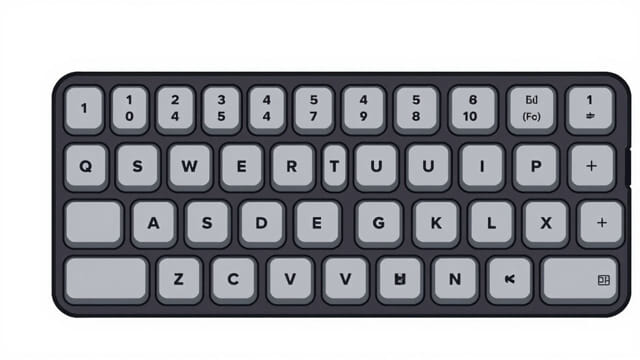
How to Use Keyboard Shortcuts to Change CAPS to Lowercase A Simple GuideChanging uppercase letters to lowercase quickly can save time, especially when editing long documents. Many people still do this manually, letter by letter. Luckily, there are easy keyboard shortcuts and built-in tools that can do it in seconds. This topic will explain the best ways to convert CAPS to lowercase using keyboard shortcuts, tips for different platforms, and when to use these shortcuts efficiently.
Why You Might Need to Convert CAPS to Lowercase
Sometimes you accidentally leave Caps Lock on and type a full sentence in uppercase. Other times, you receive text in all caps from someone else. All caps may be seen as shouting in online communication, so converting to lowercase helps improve tone and readability. Knowing the right keyboard shortcut or tool can speed up your workflow and make editing much easier.
Keyboard Shortcuts for Lowercase Conversion in Microsoft Word
One of the most common word processors, Microsoft Word, offers a simple shortcut to change the case of selected text.
Shortcut
Shift + F3
How it works
-
Highlight the text you want to change.
-
Press Shift + F3.
-
The text will toggle between
-
All lowercase
-
All uppercase
-
Sentence case (first letter capitalized)
-
Repeat pressing the shortcut until you reach the desired format.
Changing Text Case on Windows Without Word
If you’re not using Microsoft Word, Windows still offers ways to change case using other applications like Notepad++ or free tools like PowerToys.
Notepad++ Method
-
Highlight the text.
-
Press Ctrl + U for lowercase.
-
Press Ctrl + Shift + U for uppercase.
PowerToys Text Extractor and Transformer
Microsoft PowerToys includes a feature that lets you transform selected text, including case conversion. It’s a good option if you regularly need this function outside Word.
Keyboard Shortcuts for Lowercase on Mac
Mac users can use shortcuts inside native apps like Pages or third-party apps like Microsoft Word for Mac.
In Microsoft Word for Mac
- fn + Shift + F3 (on some keyboards, you may only need Shift + F3)
This functions the same as on Windows toggling between uppercase, lowercase, and sentence case.
In Pages (Mac’s word processor)
Unfortunately, Pages does not have a built-in shortcut. You’ll need to go to the menu bar
- Format > Font > Capitalization > Lowercase
You can also set up your own custom shortcut in System Settings > Keyboard > Shortcuts.
Online Tools and Extensions (Without Using External Links)
For users who don’t want to install software or don’t have access to a word processor, there are browser-based tools that can convert text easily. Most browsers also support extensions that offer text case functions. While these aren’t keyboard shortcuts, they can be accessed quickly using context menus or pinned icons.
Tips for Efficient Text Case Editing
To get the most out of keyboard shortcuts for text conversion, keep the following tips in mind
-
Always highlight text first. The shortcut won’t work without selecting something.
-
Know the software. Not all programs support these shortcuts. Test them first in your preferred text editor.
-
Use undo (Ctrl + Z or Cmd + Z) if the result isn’t what you expected.
-
Practice toggling. In apps like Word, the shortcut toggles through options, so you may need to press it more than once.
Converting Case in Google Docs
Google Docs doesn’t have a keyboard shortcut for changing case by default, but you can still access it through the menu.
-
Select your text.
-
Go to Format > Text > Capitalization.
-
Choose lowercase, UPPERCASE, or Title Case.
Alternatively, you can install a free add-on like "Change Case," which adds this function with easier access, though this requires a few clicks rather than a shortcut.
Using Macros or Scripts for Repeated Use
If you often need to convert caps to lowercase in large amounts of text, consider setting up a macro or script.
In Word
You can record a macro for the Shift + F3 action and assign it a custom shortcut.
In AutoHotkey (for Windows users)
AutoHotkey allows you to write a script that changes selected text to lowercase and assign it to any shortcut.
Example code
^+lSend, ^cClipWaitStringLower, clipboard, clipboardSend, ^vreturnThis script makes Ctrl + Shift + L convert selected text to lowercase.
Changing CAPS to lowercase doesn’t have to be a tedious task. With the right keyboard shortcuts and tools, you can do it in seconds whether you’re using Windows, Mac, Word, or Google Docs. Learning these shortcuts improves your efficiency and helps you maintain clean, well-formatted documents. Try using them the next time you’re editing and see how much time you save.
Would you like a quick-reference table of these shortcuts by platform?